Whether you are refreshing your website design, installing updates, or fixing a critical issue, there is one thing every site owner should understand before making live changes: how to keep visitors informed while work is happening behind the scenes.
That is exactly what WordPress maintenance mode is for.
WordPress maintenance mode gives you a way to temporarily hide unfinished work, protect the user experience, and avoid confusing visitors with broken layouts, failed checkout flows, or half-complete updates. When used properly, it also helps reduce unnecessary risk during routine site work.
Table of Contents
What Is WordPress Maintenance Mode?
WordPress maintenance mode is a temporary state where visitors see a placeholder page instead of your live website. That page usually explains that the site is temporarily unavailable because of scheduled work, and it may include a return time, a contact option, or a way to get notified when the site is back.
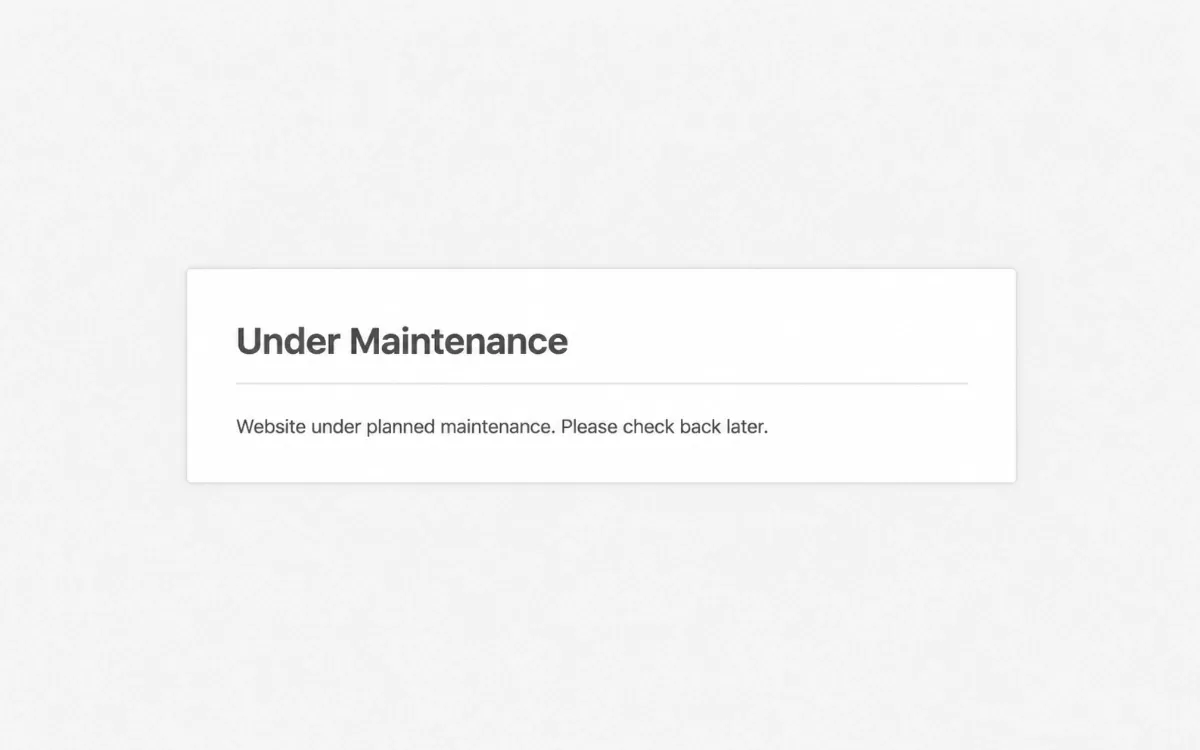
It works like a simple “we will be right back” sign for your website. While visitors see that message, you can safely work on the site in the background by updating plugins, changing layouts, fixing conflicts, or handling more technical maintenance tasks.
For many websites, maintenance mode is not just about appearances. It is a practical way to prevent confusion, reduce trust issues, and keep business-critical journeys from feeling broken while the site is being worked on.
If you want the broader context behind that, see why WordPress maintenance is important.
Why Does WordPress Maintenance Mode Matter?
WordPress already uses a very basic maintenance mode during some automatic updates. When WordPress core, themes, or plugins are being updated, the system may briefly show a message that tells visitors the site is unavailable for scheduled maintenance.
That built-in behavior is useful for very short update windows, but it is not enough for more visible work. If you are redesigning a page, troubleshooting a plugin conflict, changing infrastructure, or working on a WooCommerce store, visitors may otherwise land on a website that looks broken, incomplete, or unreliable.
Maintenance mode matters because it gives you control over that experience. Instead of exposing people to errors, unfinished pages, or temporary bugs, you can present a clean message that sets expectations and protects the brand impression.
When Should You Use WordPress Maintenance Mode?
Maintenance mode makes the most sense when live visitors would have a worse experience if they saw the site during active work.
Common use cases include:
- major WordPress core updates
- theme redesigns or layout overhauls
- plugin conflicts or critical bug fixes
- database migrations or hosting moves
- WooCommerce store changes that could affect checkout
- performance work such as caching changes or CDN setup
Not every small update requires maintenance mode. If you are publishing a blog post or making a tiny copy change, there is usually no need. But when user flows, design integrity, or data consistency are at risk, maintenance mode becomes much more valuable.
Need a safer way to handle WordPress changes?
WordPress Built-In Mode vs Maintenance Plugins
The Problem With WordPress’s Built-In Maintenance Mode
WordPress has a native maintenance mechanism, but it is intentionally minimal. During some updates, WordPress creates a temporary .maintenance file in the site root and removes it once the process is complete.
If everything goes smoothly, this is fine. If an update fails or gets interrupted, that file may remain in place and the site can get stuck showing the default maintenance message longer than intended.
The built-in option is also limited because it offers:
- no branding or custom design
- no clear explanation of what is happening
- no countdown timer or expected return time
- no email capture or contact option
- no richer access controls for teams reviewing the site
For short automated updates, the default behavior may be enough. For anything more substantial, it usually is not.
What Is a WordPress Maintenance Mode Plugin?
A WordPress maintenance mode plugin gives you much more control over how the maintenance experience looks and behaves. Instead of using the generic default message, you can publish a branded page that feels intentional and trustworthy.
Many of these plugins let you:
- match the page to your brand
- add a countdown timer
- show social links or contact details
- collect email addresses for launch notifications
- let administrators bypass the maintenance screen
- control how the page behaves for search engines
That makes a maintenance mode plugin useful not just for technical work, but also for communication. It turns downtime into a managed experience instead of a vague error state.
Top Features to Look for in a WordPress Maintenance Mode Plugin
Not every plugin offers the same balance of flexibility, usability, and technical control. If you are comparing tools, these are some of the most useful features to prioritize.
Visual page builder
A drag-and-drop interface makes it easier to launch a polished maintenance page quickly, especially if you do not want to edit templates manually.
Countdown timer
A countdown can help reassure visitors that the downtime is temporary and planned, especially when the work is expected to last for more than a few minutes.
Email capture
If the site is being relaunched or unavailable during an important window, email capture can help you notify visitors when the site is available again.
SEO-friendly settings
For temporary downtime, a proper setup should return a 503 Service Unavailable response. This tells search engines the site is temporarily unavailable rather than permanently broken or removed.
Role-based access
Good plugins often let administrators or other approved roles see the real site while visitors see the maintenance page. That is especially useful for QA, client review, or team collaboration.
Analytics or tracking support
Some tools help you understand how often visitors hit the maintenance page, which can be useful if downtime overlaps with a campaign, launch, or sales period.
Popular WordPress Maintenance Mode Plugins
Several plugins are commonly used for this kind of workflow.
- Maintenance is a minimal plugin that suits straightforward temporary notices.
- LightStart is a lighter option for simpler maintenance page needs.
- Coming Soon Page & Maintenance Mode by WPBeginner is aimed at users who want a beginner-friendly setup with broader integrations.
The right choice depends on how much control you want, how branded the experience needs to be, and whether you need extra features like email capture or role-based access.
How to Enable WordPress Maintenance Mode Step-by-Step
The exact workflow depends on the plugin you choose, but the general process is usually simple.
- Install and activate a maintenance mode plugin from the WordPress plugin directory.
- Open the plugin settings in your WordPress dashboard.
- Enable maintenance mode.
- Customize the page with your logo, message, and any useful details like a countdown or contact info.
- Configure access so logged-in administrators can still view the site normally.
- Save and publish the maintenance page.
- Complete your updates or fixes behind the scenes.
- Disable maintenance mode once the work is finished.
Before you switch it on, it is also worth checking that your backups are current and that the site can be restored if the maintenance task goes wrong.
WordPress Maintenance Mode vs. Coming Soon Mode
These terms sound similar, but they are not exactly the same.
| Maintenance Mode | Coming Soon Mode | |
|---|---|---|
| Purpose | Temporarily hide a live site during updates | Hide a new site before launch |
| HTTP status | 503 Service Unavailable | Often 200 or 307 depending on setup |
| SEO impact | Helps preserve existing SEO signals | Often delays indexing intentionally |
| Typical duration | Short-term | Longer pre-launch period |
If your site already exists and is temporarily unavailable while work is being done, maintenance mode is usually the right choice. If you are building a brand-new site that is not ready to launch, coming soon mode may be the better fit.
Best Practices for Using WordPress Maintenance Mode
Like most website operations work, maintenance mode works best when it is handled intentionally.
- schedule major work during lower-traffic periods when possible
- use a proper
503response for temporary downtime - set realistic expectations if you show a return time
- take a backup before major changes
- test the maintenance experience before a high-risk update
- communicate through other channels if the downtime is meaningful
Those small steps can make the difference between a smooth maintenance window and a frustrating one for both your team and your visitors.
Conclusion
WordPress maintenance mode is a simple feature, but it plays an important role in protecting user trust while your site is being worked on. It helps you avoid showing visitors unfinished pages, broken flows, or temporary errors during updates, redesigns, fixes, or migrations.
For very short automatic updates, the built-in WordPress option may be enough. For anything more visible or business-critical, a dedicated WordPress maintenance mode plugin usually gives you a much better experience through branding, access control, clearer messaging, and better SEO handling.
If your site matters to your business, maintenance mode should be treated as part of a thoughtful update process rather than an afterthought.
Need professional WordPress maintenance?
Explore ReloadWP pricing to find a care plan for updates, backups, security monitoring, and ongoing website support.
FAQs
What is WordPress maintenance mode?
WordPress maintenance mode is a temporary state that shows visitors a placeholder page while you work on your site behind the scenes. It helps hide unfinished changes and keeps the user experience clear during updates or repairs.
When should I use WordPress maintenance mode?
You should use WordPress maintenance mode during major updates, redesigns, plugin conflict fixes, migrations, WooCommerce changes, or other work that could break the visitor experience if done live.
Does WordPress have a built-in maintenance mode?
Yes. WordPress briefly enables a native maintenance mode during some updates by creating a temporary .maintenance file. It works for short automated updates, but it is limited and not ideal for longer or more visible work.
Is a WordPress maintenance mode plugin better than the default option?
In many cases, yes. A dedicated plugin gives you branding, messaging, countdown timers, access controls, and better user communication than the default WordPress maintenance message.
Can maintenance mode affect SEO?
It can if it is configured poorly. A proper maintenance setup should return a 503 status code for temporary downtime so search engines understand the site is unavailable for a short period rather than permanently broken.